
You open your site on your phone and the text is cramped, buttons overlap, and the page takes five seconds to load. Every one of those problems has a name: your site is not mobile optimized. This article explains what that phrase actually means, why it matters for search rankings, and how the underlying mechanisms work.
What Does Mobile Optimized Mean?
A mobile optimized website is one that has been deliberately designed and configured to work well on smartphones and tablets — not just resized from a desktop layout. The distinction is important. A site can technically display on a mobile screen without being mobile optimized: text may be unreadably small, tap targets too close together, and images wider than the viewport. Mobile optimization removes those friction points by addressing layout, performance, and usability as a connected system.
The phrase appears in two related contexts. In web development it describes the technical implementation: viewport meta tag, responsive CSS, touch-friendly UI patterns, and performance tuning for slower mobile networks. In SEO it describes a ranking signal: Google explicitly states that mobile-first indexing means Googlebot predominantly uses the mobile version of a page’s content for indexing and ranking. A site that fails on mobile is not just a bad user experience — it is a search visibility problem.
Mobile-First Indexing: Why Google Cares About Your Phone Version
Google switched to mobile-first indexing by default for all new sites in 2019 and completed the rollout for older sites in 2023. In practice this means: if your mobile version of a page has less text, fewer headings, or missing structured data compared to your desktop version, Google indexes the thinner version. Rankings follow what Googlebot sees on a mobile crawler, not a desktop one.
What Googlebot checks on a mobile crawl:
- Whether the viewport meta tag is present and correctly configured.
- Whether content is accessible without tapping, scrolling horizontally, or zooming in to read.
- Whether the same primary content and structured data appear on the mobile URL as on the desktop URL.
- Whether Core Web Vitals scores on mobile fall within acceptable thresholds.
- Whether interstitials (full-screen pop-ups) block the main content on mobile — Google has applied a ranking penalty for this since 2017.
The Google Search Central documentation on preparing for mobile-first indexing covers each of these in detail.
The Viewport Meta Tag: The Foundation
Before any CSS can make your layout responsive, the browser needs to know not to simulate a wide desktop viewport on a small screen. That instruction is the viewport meta tag. Without it, mobile browsers default to a virtual viewport of around 980 px, shrink your page to fit the device width, and force the user to pinch-zoom. With it, the browser uses the actual screen width and your CSS can do its job.
<!-- Add this inside <head> on every page -->
<meta name="viewport" content="width=device-width, initial-scale=1">

<!-- Do NOT add user-scalable=no — it breaks accessibility zoom -->
width=device-width sets the viewport width to the device’s screen width in CSS pixels. initial-scale=1 sets a 1:1 ratio between CSS pixels and device-independent pixels on load. Those two values are all you need. MDN’s viewport meta tag reference explains the full spec and documents the accessibility implications of user-scalable=no.
If you want to understand viewport in practice and see how responsive layouts are built around it, the step-by-step implementation is covered in the complete mobile optimization guide.
Responsive Design vs Adaptive Design
Both approaches make sites work across screen sizes, but they do it differently. Understanding the difference helps you evaluate what your theme or framework is actually doing.
| Approach | How It Works | CSS Mechanism | Common In |
|---|---|---|---|
| Responsive design | One fluid layout that adjusts to any viewport width using proportional units and breakpoints | @media queries, flexbox, grid, % / vw / clamp() |
Modern CSS frameworks, WordPress block themes, most sites built after 2012 |
| Adaptive design | Several fixed layouts pre-built for specific breakpoints; the server (or JavaScript) detects the device and serves the matching layout | Server-side device detection or JavaScript breakpoint switching | Large legacy sites, some native-app-like web apps |
Separate mobile site (m. subdomain) |
Entirely different URLs for mobile and desktop; mobile users are redirected | Server redirect, separate templates | Older e-commerce and news sites; strongly discouraged by Google today |
Google recommends responsive design as the simplest configuration for mobile-first indexing because the same URL and the same HTML serve all devices — there is no content parity problem between desktop and mobile versions. web.dev’s responsive design learning path covers the underlying patterns in depth.
A responsive layout uses @media queries to apply different CSS rules at different viewport widths. Here is the minimal pattern — mobile styles as the default, desktop styles added via a min-width query:
/* Base styles: single column (applies to all screen sizes) */
.article-body {
  padding: 1rem;
  font-size: 1rem;         /* 16 px baseline — below this, users tap-zoom */
  line-height: 1.7;
  max-width: 100%;
}

/* Wider screens: restore multi-column layout */
@media (min-width: 768px) {
  .article-body {
    padding: 2rem 3rem;
    font-size: 1.0625rem; /* 17 px */
    max-width: 740px;
    margin: 0 auto;
  }
}

/* Images: never overflow the container */
img {
  max-width: 100%;
  height: auto;
  display: block;
}
Writing mobile styles first (the “mobile-first” CSS methodology, separate from “mobile-first indexing”) keeps the critical path small: mobile devices download and parse fewer bytes before rendering.
Benefits of Mobile Optimization
The case for mobile optimization is not just about avoiding a bad experience — it has direct, measurable effects on search visibility, engagement, and conversion.
- Search ranking. Mobile-first indexing means Google ranks the mobile version. A poorly mobile-optimized page will rank below a parity-optimized competitor even for desktop searches.
- Bounce rate reduction. Google’s research found that 53% of mobile site visits are abandoned if a page takes more than three seconds to load. Speed = retention.
- Core Web Vitals signal. Page Experience signals (LCP, INP, CLS) are a confirmed ranking factor. Mobile scores are measured and reported separately in Google Search Console and almost always lag behind desktop — optimizing mobile directly improves the signal Google uses.
- Accessibility overlap. Touch-target sizing (≥ 24×24 px per WCAG 2.5.8 AA, ≥ 44×44 px per Apple HIG), sufficient font size, and adequate contrast benefit users with motor and visual impairments as well as mobile users.
- Conversion rate. A study by Google and SOASTA found that a 1-second improvement in mobile page speed correlated with up to a 27% increase in conversion rate.
- Single codebase. A responsive site is one codebase, one URL structure, one set of analytics. Separate
m.subdomains create duplicate-content risk and double the maintenance surface.
Core Web Vitals: The Performance Layer of Mobile Optimization
Core Web Vitals are Google’s three standardized metrics for user experience. They are measured on real users’ devices through the Chrome User Experience Report (CrUX) and, when field data is unavailable, estimated via Lighthouse lab tests. Mobile scores are assessed and displayed separately from desktop in Google Search Console — most sites score lower on mobile.
| Metric | What It Measures | Good | Needs Improvement | Poor |
|---|---|---|---|---|
| LCP (Largest Contentful Paint) | Time until the largest visible element (usually hero image or heading) renders | ≤ 2.5 s | 2.5–4.0 s | > 4.0 s |
| INP (Interaction to Next Paint) | Responsiveness to user input — time from tap/click to next visual update | ≤ 200 ms | 200–500 ms | > 500 ms |
| CLS (Cumulative Layout Shift) | Visual stability — how much elements shift during page load | ≤ 0.1 | 0.1–0.25 | > 0.25 |
The full thresholds and methodology are documented at web.dev/articles/vitals. For the practical steps to improve each score on your site specifically, see the mobile optimization implementation guide, which includes the performance checklist alongside the layout fixes.
Adding Widgets Without Breaking Mobile Performance
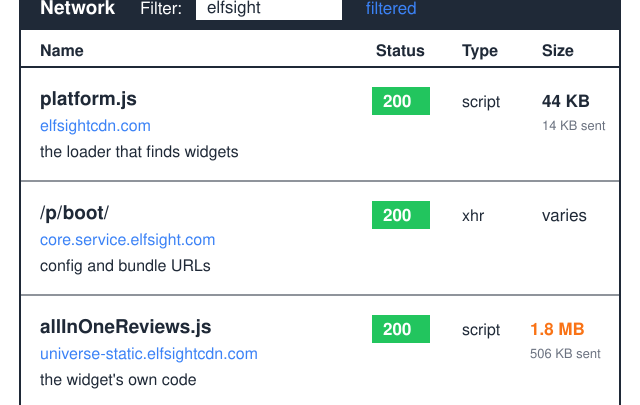
One area where mobile optimization intersects with site functionality is third-party embeds. Contact forms, review carousels, and social feeds added via widget platforms can introduce render-blocking JavaScript that harms LCP on mobile. The rule of thumb: any widget that appears below the fold should load lazily; any widget <script> tag should carry the async or defer attribute. The guide to HTML website widgets covers the embed patterns that keep performance intact.
Frequently Asked Questions
What is the difference between mobile-friendly and mobile optimized?
“Mobile-friendly” typically means a site passes Google’s basic mobile usability test — it displays without horizontal scroll, uses legible font sizes, and spaces touch targets adequately. “Mobile optimized” goes further: it also addresses load time, Core Web Vitals scores, content parity between mobile and desktop versions, and the specifics of mobile-first indexing. A site can be mobile-friendly and still have a slow LCP, poor INP, or missing structured data on its mobile version — those are optimization failures, not friendliness failures.
Does mobile optimization affect desktop rankings?
Yes, directly. Because Google uses mobile-first indexing for all sites, the mobile version of your page is what Googlebot indexes and ranks — for both mobile and desktop search queries. If your mobile site has thin content, missing structured data, or poor Core Web Vitals, those deficiencies affect your rankings for desktop users as well. The two are no longer separate concerns.
What is the viewport meta tag and do I need it?
The viewport meta tag (<meta name="viewport" content="width=device-width, initial-scale=1">) is an HTML instruction that tells mobile browsers to use the device’s actual screen width rather than simulating a desktop viewport. Without it, a mobile browser typically renders your page at ~980 px wide and shrinks it to fit the screen — making text and buttons microscopic. Every page on a modern site needs this tag. If you are using a current WordPress theme or any major CSS framework, it is almost certainly already included in the theme’s <head> template.
Is responsive design the same as mobile optimization?
Responsive design — layouts that adapt fluidly using CSS media queries — is the most important component of mobile optimization, but it is not the whole picture. A site can have a fully responsive layout and still score poorly on mobile because of slow server response times, render-blocking scripts, unoptimized images, or layout shift caused by late-loading fonts. Mobile optimization covers responsive design plus performance tuning plus content parity plus touch usability.
How do I check if my site is mobile optimized?
Start with Google Search Console’s Mobile Usability report — it flags specific pages with usability issues. Then run a PageSpeed Insights test, which shows Core Web Vitals field data (from real users) and Lighthouse lab scores separately for mobile and desktop. Finally, manually resize your browser window to 375 px wide (a common small-phone width) and scroll through the page looking for overflow, text that requires zooming, and buttons that are difficult to tap.

![iPhone screen yellow? [Solution]](https://htmlblog.net/wp-content/uploads/2022/10/iphone-screen-yellow-768x432.webp)