A folder of PDF files is a filing cabinet. A searchable PDF archive is a database you can query in seconds. The difference comes down to whether the text inside each PDF is machine-readable — and if it is not, OCR can fix that.
This guide explains the two PDF types, the tools that make files searchable, and how to build an indexed archive you can search across hundreds of documents at once.
Text-Based vs. Image-Based PDFs: The Fundamental Distinction
Not all PDFs contain text that a computer can read. There are two types:
- Text-based PDFs — the text is stored as characters in the file. You can select it, copy it, and a search tool can index it. Anything exported directly from a word processor (Word, Google Docs, LibreOffice) produces a text-based PDF.
- Image-based PDFs — the pages are photographs or scans. The file contains pixels, not characters. You cannot select or search the text visually displayed on the page. This is the output of a flatbed scanner or a photo taken of a document.
To check which type you have: open the PDF and press Ctrl+A to select all. If text highlights, it is text-based. If the entire page highlights as a single image block, it is image-based and will require OCR before it can be searched.
Method Comparison: Ways to Build a Searchable PDF Archive
| Method | OCR included | Best volume | Searchable across files | Cost |
|---|---|---|---|---|
| Adobe Acrobat Pro | Yes (built-in) | Single files to batches | Yes, with built-in search index | From $19.99/mo |
| Google Drive | Yes (on upload) | Hundreds of files | Yes, via Drive search | Free (storage limits apply) |
| Tesseract + pdftotext | Yes (Tesseract) | Thousands of files; scriptable | Depends on index layer (grep, SQLite, Elasticsearch) | Free (open source) |
| DocFetcher | No (indexes existing text-layer PDFs) | Thousands of files locally | Yes — full-text index on disk | Free (open source) |
| Paperless-ngx | Yes (Tesseract built-in) | Home/small office archive | Yes — web UI with full-text search | Free (self-hosted) |
Step-by-Step: Build a Local Searchable Archive with DocFetcher
DocFetcher is an open-source desktop application that indexes a folder of documents and lets you search across all of them instantly. It handles PDF, Word, Excel, HTML, and plain text. This is the method I use for a local archive of technical manuals and contracts.
- Download DocFetcher (available for Windows, Mac, Linux).
- Install and launch the application.
- In the left panel, right-click in the Search Scope area and choose Create Index From Folder.
- Navigate to the folder containing your PDFs and confirm. DocFetcher indexes all files recursively — sub-folders are included.
- Wait for indexing to complete (progress shown in the status bar). A folder of 500 PDFs takes roughly 2–5 minutes on a modern machine.
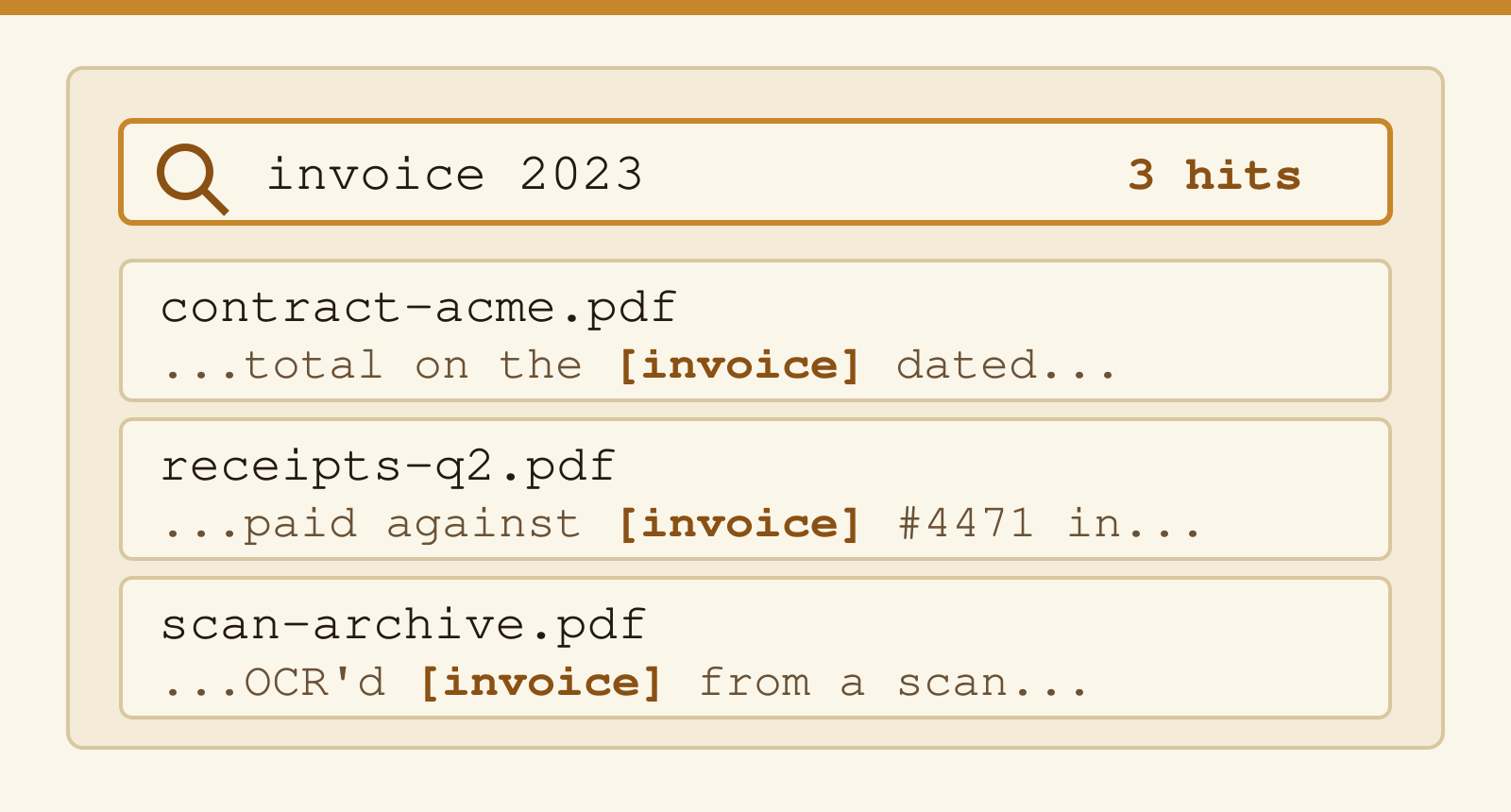
- Type any word or phrase in the search box. Results show the filename, a relevance score, and a preview of matching text in context.
- Double-click a result to open the PDF at the correct page.
When you add new files to the folder, right-click the index in the Search Scope panel and choose Update Index to pick up the new documents.
Adding OCR to Image-Based PDFs
If your archive includes scanned documents, you need to run OCR (Optical Character Recognition) before indexing. OCR software analyses the pixels in each page, recognises the characters, and embeds a text layer into the PDF. After that, any indexer can read the text.
Option A: Google Drive (No Installation)
- Upload the scanned PDF to Google Drive.
- Right-click it and choose Open with → Google Docs. Drive runs OCR and opens the text in a Docs document.
- In Docs, go to File → Download → PDF Document. The downloaded PDF now contains a searchable text layer.
This works well for occasional documents. For batches, the manual upload-and-convert cycle becomes tedious quickly.
Option B: Tesseract (Command Line, Batch-Friendly)
Tesseract is the most widely used open-source OCR engine, maintained by Google. Combined with pdftoppm (from the Poppler toolset), it can process entire folders of scanned PDFs into searchable output.
Install on Ubuntu/Debian:
sudo apt install tesseract-ocr poppler-utilsConvert a single scanned PDF to a searchable PDF:
# Step 1: convert PDF pages to images (300 DPI for accurate OCR)
pdftoppm -r 300 input-scan.pdf page

# Step 2: run Tesseract on each image and produce a PDF with a text layer
tesseract page-1.ppm output-1 pdf
# Repeat for each page, then merge with: pdfunite output-*.pdf final.pdf
For a whole folder, wrap this in a shell loop. Tesseract supports over 100 languages — install the relevant language pack for non-English documents.
Option C: Paperless-ngx (Self-Hosted, Everything Included)
Paperless-ngx is a self-hosted document management system that handles the entire pipeline: it watches a folder for new files, runs OCR automatically on any image-based PDF, indexes the text, and presents a web UI for searching and tagging your archive. It runs on a home server or a Raspberry Pi. If you are building a long-term personal document archive, this is the most complete solution listed here.
OCR Tool Comparison
| Tool | Accuracy | Batch processing | Output format | Price |
|---|---|---|---|---|
| Tesseract 5 | High (LSTM engine) | Yes (scripted) | PDF, text, hOCR, TSV | Free |
| Adobe Acrobat Pro OCR | High | Yes (Action Wizard) | Searchable PDF in place | $19.99/mo (annual plan) |
| Google Drive OCR | Good | No (manual per file) | Google Doc → PDF re-export | Free |
| ABBYY FineReader | Very high | Yes | PDF, Word, Excel | Around $117/year (Standard for Windows) |
| ocrmypdf | High (Tesseract under the hood) | Yes (CLI) | Adds text layer to existing PDF | Free |
ocrmypdf is worth a specific mention: it takes a scanned PDF and adds a searchable text layer to it in one command, preserving the original layout and images. It is easier to use than raw Tesseract for PDF inputs specifically.
# Install on Ubuntu/Debian
sudo apt install ocrmypdf

# Add OCR text layer to a scanned PDF
ocrmypdf --skip-text input-scan.pdf output-searchable.pdf

# Process a whole folder
for f in *.pdf; do ocrmypdf --skip-text "$f" "ocr-$f"; done
The --skip-text flag tells ocrmypdf to leave pages that already have a text layer alone, which is useful when an archive contains a mix of scanned and already-text-based PDFs.
What About a Searchable Database Beyond Full-Text Search?
Full-text search finds words inside documents. A proper database also lets you filter by metadata: date, author, category, tags. If your archive needs that level of organisation, the options split into:
- Paperless-ngx — adds correspondent, document type, and custom tag fields on top of full-text search. Good for personal or small-team archives.
- Elasticsearch — when you have tens of thousands of documents and need fast faceted search, Elasticsearch with a PDF parsing pipeline (using the Ingest Attachment processor) provides sub-second queries across any volume.
- SQL database + pdftotext — for developers who want full control: extract text from each PDF with
pdftotext(from Poppler), store it in adocumentstable with aFULLTEXTindex in MySQL ortsvectorin PostgreSQL, then query it with standard SQL.
For context on how HTML files relate to PDF archives in a document workflow, see the overview of HTML file openers and viewers.
Frequently Asked Questions
How do I make an existing PDF searchable without paid software?
Use ocrmypdf (free, open-source). Install it, then run ocrmypdf input.pdf output.pdf. It adds a searchable text layer to each page using Tesseract OCR. The result is a standard PDF that any PDF reader or indexer can search.
What is the difference between a searchable PDF and a regular PDF?
A regular PDF may contain pages that are images (scans). A searchable PDF has a text layer embedded alongside each page image, so software can read the characters. The visual appearance is identical; the difference is invisible to the eye but significant for search and copy-paste.
Can I search across multiple PDFs at once on my desktop?
Yes — DocFetcher (free, cross-platform) indexes an entire folder and lets you search all PDFs simultaneously. On Windows, Everything + a PDF indexer plugin handles this as well. macOS Spotlight indexes PDFs natively; once a folder has been indexed, you can search its contents from Spotlight search.
How accurate is OCR on scanned documents?
Accuracy depends on scan quality. A 300 DPI scan of a clear black-and-white typed document processed through Tesseract 5 typically reaches 98–99% character accuracy on standard English text. Handwriting, low-contrast originals, or unusual typefaces reduce accuracy significantly. The Tesseract documentation covers the full list of factors.
Does Google Drive store my documents when I use it for OCR?
Yes. Files uploaded to Google Drive are stored on Google’s servers and subject to Google’s terms of service and privacy policy. For confidential documents (legal, medical, financial), use a local OCR tool like ocrmypdf or Tesseract instead — the files never leave your machine.
![iPhone screen yellow? [Solution]](https://htmlblog.net/wp-content/uploads/2022/10/iphone-screen-yellow-768x432.webp)