An HTML file on your iPhone shows up as a blank or garbled download unless you know where to point it. There are three routes that actually work — Files app preview, a browser-based workaround, and a dedicated code editor app. Which one you need depends on whether you want to see the rendered page or read the raw markup.
Method 1: Quick Look via the Files App (View Only)

If the file is already on your iPhone — in Downloads, iCloud Drive, or an email attachment — the Files app can render a visual preview without installing anything extra.
- Open the Files app.
- Navigate to where the .html file is stored (try Browse → Downloads or check iCloud Drive).
- Tap the file once.
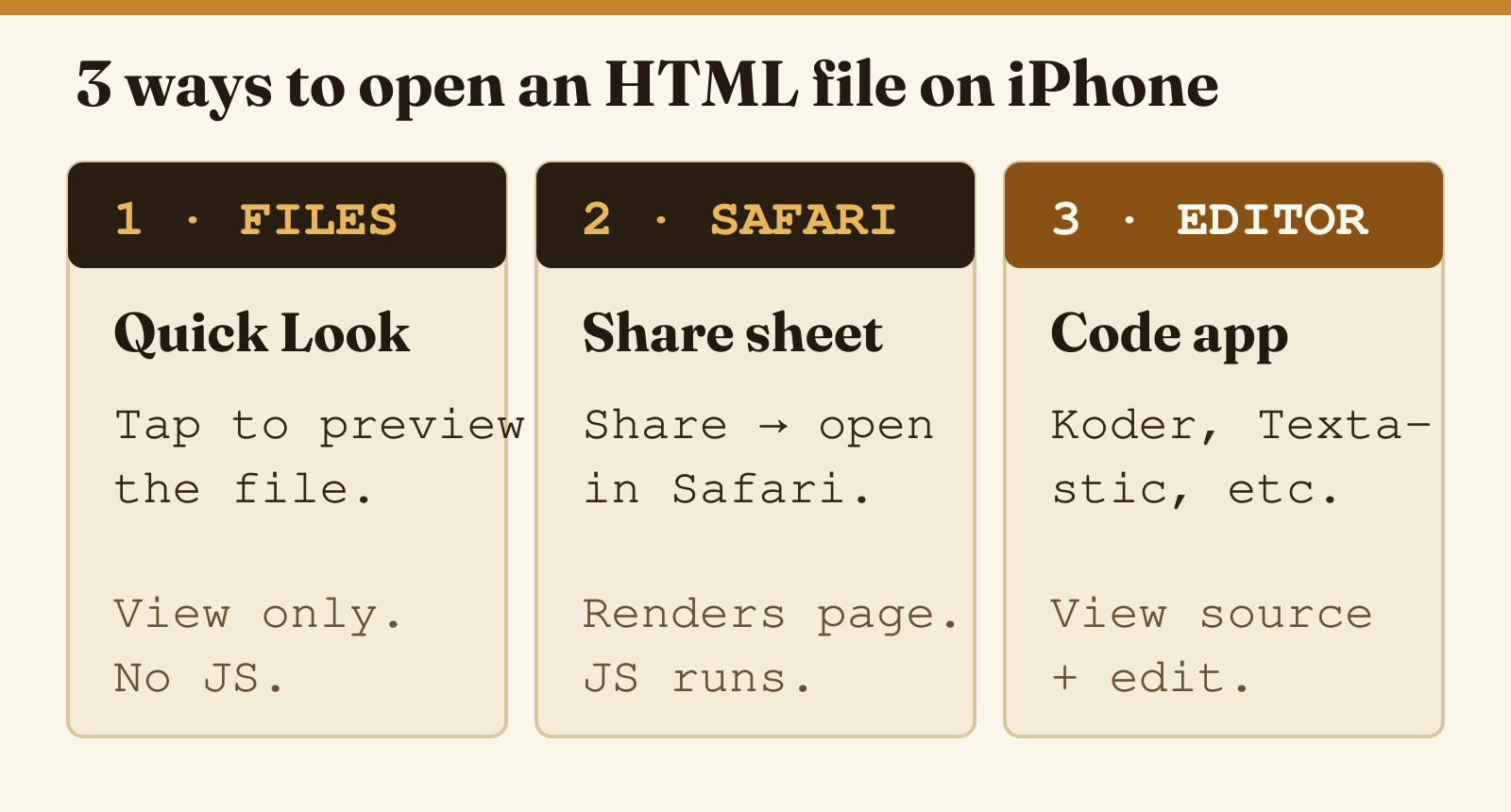
- iOS Quick Look opens a rendered preview — you see the page as it would appear in a browser.
Quick Look renders HTML including inline CSS. It does not run JavaScript, so interactive elements will be static. This method is fine for reading an HTML email template, a downloaded article, or a simple local page. It will not show you the source code.
Method 2: Open in Safari to See the Rendered Page
Safari on iOS can open local HTML files if you share them to the browser directly from Files.
- In the Files app, long-press the .html file.
- Tap Share from the context menu.
- Scroll the share sheet and tap Copy to Safari — or tap Open in… and select Safari if it appears.
- Safari renders the file as a local page.
Note: Safari on iOS does not support the file:// URL scheme directly in the address bar the way desktop browsers do. The share-sheet route above is the supported path. JavaScript runs normally in this view, unlike Quick Look.
Method 3: A Code Editor App (View Source + Edit)
When you need to read or modify the HTML markup itself — not just see the rendered result — you need a code editor app. The options below are free or low-cost on the App Store.
- Download one of the apps from the table below.
- Open the app.
- Use its built-in file browser or import function to locate your .html file. Most support importing from Files, iCloud Drive, or a server.
- Tap the file to open it. The raw HTML source appears with syntax highlighting.
- Edit as needed. Save back to the same location.
When I tested this on an iPhone, the Koder app handled a 400-line HTML file without any lag and correctly highlighted attribute values even inside multi-line tags. It also has a built-in web preview that renders the file in a split view.
App Comparison: HTML Editors for iPhone
| App | Best for | Built-in preview | File sources supported | Price |
|---|---|---|---|---|
| Koder Code Editor | General code editing; 80+ languages including HTML/CSS/JS | Yes (split-screen) | Files, iCloud, SFTP, FTP, Dropbox | Free (in-app purchases for extras) |
| Textastic | Professional use; fast syntax engine; WebDAV/SSH support | Yes | Files, iCloud, SFTP, FTP, GitHub | A low-cost one-time purchase (see App Store for current price) |
| aWebCreator | Beginners; live preview as you type; good for learning | Yes (live) | Files, iCloud | Free |
| Working Copy | Teams using Git; full Git client with editor | Limited | Git repos, Files | Free, with a paid upgrade for push/sync |
Textastic is the one to pick if you work on HTML regularly from your phone and want a reliable sync with a remote server. Koder is the better free option. aWebCreator is the most beginner-friendly if you are just learning HTML on the go.
What If the HTML File Is on a Remote Server?
If the file lives on a web server and you need to edit it from your iPhone, both Koder and Textastic support SFTP connections. You connect to the server directly, browse the file tree, open and edit files, and save changes back to the server — all from the app. You will need your server’s hostname, username, and SSH key or password.
For a broader look at HTML file handling on desktops and other platforms, see the guide to opening HTML files on any device.
Frequently Asked Questions
Can Safari on iPhone open a local HTML file?
Not directly from the address bar — iOS Safari does not allow typing a file:// path. Use the share sheet from the Files app to send the file to Safari, or use a code editor app that has a built-in web preview.
How do I get an HTML file onto my iPhone in the first place?
Several routes work: AirDrop from a Mac, email the file to yourself and save the attachment, upload to iCloud Drive from a desktop and access it in Files, or use a file-transfer app (Documents by Readdle is popular for this). USB transfer via Finder on Mac also works — connect your iPhone, select it in Finder, and use the Files section to drag files over.
Will iPhone show me the HTML source code or the rendered page?
By default — the rendered page (Quick Look and Safari both render). To see the source code you need a code editor app, which displays the raw markup with syntax highlighting.
Can I edit HTML on my iPhone and upload it back to a server?
Yes. Apps like Koder and Textastic support SFTP and FTP. Open the file directly from the server, edit it, and save — the app writes the change back without requiring a manual upload step.
Does opening an HTML file on iPhone run the JavaScript inside it?
Quick Look in Files does not execute JavaScript. Safari does run JavaScript when it opens an HTML file via the share sheet. Code editor apps with a preview pane typically run JavaScript as well. If you are opening an untrusted file and want to inspect it safely without running any scripts, open it in a code editor app and view only the source tab.