You do not need to become a developer to use HTML as a blogger. You need about a dozen tags — the ones that actually come up when you paste content into a CMS editor, fix a broken link, or add a formatted code block. This page covers exactly those, with copy-paste snippets you can use straight away.
If you want the background on what HTML is before diving into the practical side, the HTML basics guide is a good starting point.
Why Bloggers Need to Know HTML
Most blogging platforms — WordPress, Ghost, Substack — have visual editors that handle formatting for you. The problems start when:
- You paste text from Google Docs and end up with stray
<span style="...">tags polluting your markup. - You want to insert a button or a styled callout that the editor does not support natively.
- Your featured image is not displaying with the correct alt text, and you need to fix it in the HTML view.
- You want to embed a YouTube video or a tweet with specific dimensions.
- A link is broken and you need to edit the
hrefdirectly.
In every one of those situations, you switch to the HTML/Source view and edit a few characters. Knowing what you are looking at — rather than guessing — saves the kind of time that compounds across hundreds of posts.
The Core HTML Snippets Every Blogger Should Know
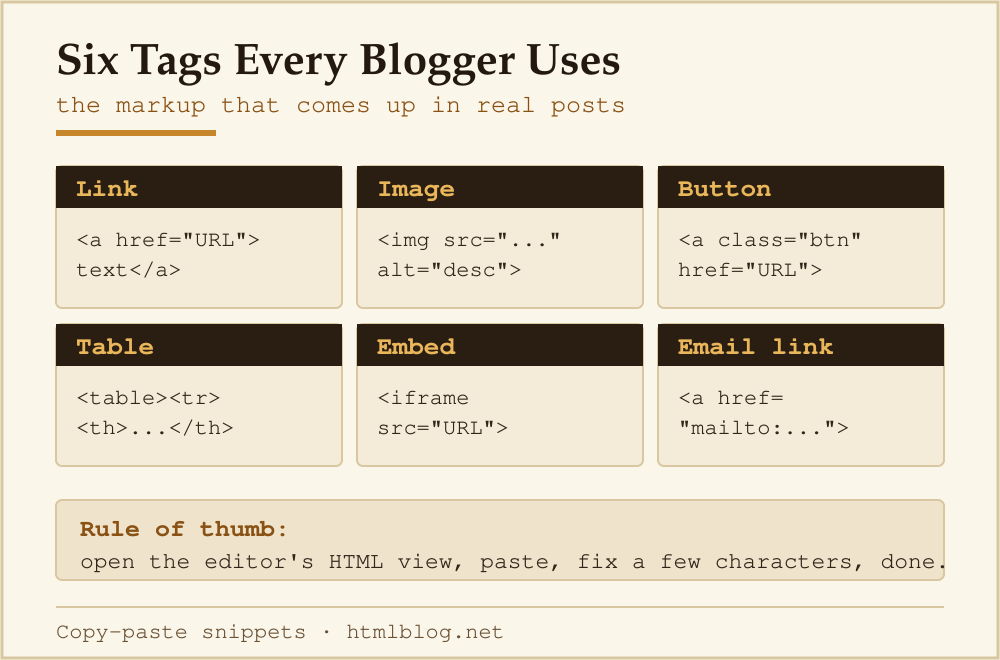
The table below shows the six patterns that come up most often in real blog content, what each one does, and the code you paste in.
| Element | Purpose | Basic code |
|---|---|---|
| Link | Send readers to another page (internal or external) | <a href="URL">anchor text</a> |
| Image | Insert an image with descriptive alt text | <img src="image.jpg" alt="description"> |
| Button | Call-to-action linked button | <a href="URL" class="btn">Button text</a> |
| Table | Compare features or display structured data | <table><tr><th>...</th></tr></table> |
| Embed | Embed YouTube, Spotify, or other iframe content | <iframe src="URL" width="560" height="315"></iframe> |
| Email link | Open the visitor’s email client addressed to you | <a href="mailto:[email protected]">Email me</a> |
Links: Internal and External
The anchor tag <a> is the single most useful element a blogger works with. Here is how each variant looks in the HTML source:
<!-- Link to another page on your own blog -->
<a href="/about/">About this blog</a>

<!-- Link to an external site, opens in a new tab -->
<a href="https://developer.mozilla.org/en-US/docs/Web/HTML"
   target="_blank" rel="noopener noreferrer">MDN HTML reference</a>

<!-- Link that jumps to a section within the same page -->
<a href="#section-heading">Jump to section</a>
<!-- ...and the target heading: -->
<h2 id="section-heading">Section heading</h2>
The rel="noopener noreferrer" attribute on external links is a security best practice: it prevents the opened page from accessing your page via window.opener. WordPress adds it automatically through its link editor, but if you are pasting raw HTML it is worth including manually.
Images: Alt Text Is Not Optional
Search engines cannot see images. Screen readers cannot describe images. The alt attribute bridges both gaps — and it affects your SEO rankings directly.
<!-- Basic image -->
<img src="/wp-content/uploads/screenshot.jpg"
     alt="WordPress block editor with HTML view open"
     width="800" height="450">

<!-- Linked image (image acts as a link) -->
<a href="/html-basics/">
  <img src="/wp-content/uploads/html-guide.jpg"
       alt="HTML basics guide cover"
       width="600" height="400">
</a>

<!-- Purely decorative image: use empty alt -->
<img src="/decorative-divider.svg" alt="">
Always include the width and height attributes matching the image’s actual pixel dimensions. Browsers use them to reserve space before the image loads, which prevents layout shift — a factor in Google’s Core Web Vitals score.
Buttons and Call-to-Action Links
Most blog platforms let you add button styles through their editor. When you need to do it in HTML, a styled anchor tag is the right approach (not a <button> element, which is for form submission, not navigation).
<!-- A download link styled as a button -->
<a href="/downloads/html-cheatsheet.pdf"
   class="btn btn-primary"
   download>Download HTML cheatsheet</a>

<!-- Opens a new tab -->
<a href="https://htmlblog.net/tools/html-formatter/"
   class="btn"
   target="_blank" rel="noopener">Try the HTML Formatter</a>
The download attribute tells the browser to download the file rather than navigate to it. The class names (btn, btn-primary) are whatever your theme defines — check your theme’s stylesheet or documentation for the correct class names.
Tables: When to Use Them
Tables are for tabular data — information that has a natural row/column structure. Do not use them for page layout (that was an HTML 3 workaround; CSS grid and flexbox replaced it). Pricing comparisons, feature lists, and version histories are good table candidates.
<table>
  <thead>
    <tr>
      <th>Plan</th>
      <th>Price / month</th>
      <th>Key feature</th>
    </tr>
  </thead>
  <tbody>
    <tr>
      <td>Free</td>
      <td>$0</td>
      <td>Up to 3 projects</td>
    </tr>
    <tr>
      <td>Pro</td>
      <td>$9</td>
      <td>Unlimited projects</td>
    </tr>
  </tbody>
</table>
The <thead> and <tbody> sections are not just for style — they tell screen readers which cells are headers, which matters for accessibility.
Embeds: YouTube, Spotify, and Other Iframes
Any embed code from a third-party platform will be an <iframe>. The platform gives you the full code — you paste it into the HTML view. Here is how a YouTube embed looks:
<iframe width="560" height="315"
  src="https://www.youtube.com/embed/VIDEO_ID"
  title="Video title"
  frameborder="0"
  allow="accelerometer; autoplay; clipboard-write;
         encrypted-media; gyroscope; picture-in-picture"
  allowfullscreen>
</iframe>
Replace VIDEO_ID with the 11-character string from the YouTube URL. The title attribute on an iframe is required for accessibility — screen readers announce it when the embed is encountered.
For responsive iframes (so they resize on mobile), wrap them in a container div with a padding-top trick, or use your theme’s responsive embed block if it has one.
Blockquotes: Citing Sources Properly
When you quote another source in a blog post, use the <blockquote> element rather than a styled paragraph. It carries semantic meaning — search engines and screen readers understand it as a quotation.
<blockquote cite="https://www.w3.org/People/Berners-Lee/">
  <p>The original idea of the web was that it should be a
  collaborative space where you can communicate through
  sharing information.</p>
  <footer>— Tim Berners-Lee</footer>
</blockquote>
The cite attribute is not displayed visually — it is metadata for parsers. The visible attribution goes inside a <footer> element inside the blockquote.
Cleaning Up Pasted Content
When you paste from Google Docs, Word, or Notion into a blog editor, the visual editor often strips visible formatting but leaves invisible <span> tags with inline styles. These clog your HTML and can break your site’s CSS.
The quickest fix is to run the pasted content through an HTML formatter — it strips junk markup and makes the code readable. The HTML Formatter tool on this site does exactly that. For converting characters like & and < into safe HTML entities (useful when displaying code examples in posts), the HTML Entity Encoder handles that automatically.
Frequently Asked Questions
Do I need to know HTML to start a blog?
No — platforms like WordPress and Ghost let you write and publish without touching HTML. But knowing even 10–15 elements will save you from layout problems you cannot fix through the visual editor. Most bloggers hit those problems within the first few months.
What is the difference between a link and a button in HTML?
An <a> tag navigates to a URL. A <button> element triggers a JavaScript action or submits a form. For blog CTAs that take readers to another page or file, always use an anchor tag styled to look like a button — not a <button> element.
How do I add a line break without starting a new paragraph?
Use <br>. It inserts a single line break without the default paragraph spacing. Use sparingly — paragraphs (<p>) are the right tool for separating blocks of text.
What does the alt attribute on images actually do?
It provides text that replaces the image when the image cannot be displayed, and it is what screen readers read aloud to visually impaired users. It is also how search engines understand what an image shows — directly affecting image search rankings and, indirectly, page relevance.
How do I make text bold or italic in HTML?
Use <strong> for bold (semantic emphasis, treated as important by search engines) and <em> for italic (semantic emphasis, stress). The older <b> and <i> tags still work but carry no semantic meaning — they are presentational only.
Where can I look up what any HTML tag does?
MDN Web Docs — HTML elements reference is the most reliable and readable reference for every element, including which attributes each one supports and which browsers implement it.