CoffeeCup HTML Editor is a Windows desktop HTML editor that has been around for decades. It sits between a bare-bones text editor and a full IDE — enough structure to help beginners, not so much abstraction that you lose sight of the code. This review covers what you actually get, what it costs, and who it is for.
What Is CoffeeCup HTML Editor?
CoffeeCup HTML Editor is a dedicated HTML/CSS editor for Windows. It is not a visual drag-and-drop site builder — you write code, and CoffeeCup helps you write it faster and more accurately. Key features include syntax highlighting, code completion, a built-in validation tool, live preview, and FTP upload.
It comes in two versions: a free version with core editing features, and a paid full version with templates, advanced tag highlighting, and an updated start screen.
CoffeeCup HTML Editor Features
Free Version Features
- Code completion — CoffeeCup suggests tag attributes and completes opening tags. Useful when you cannot remember the full attribute list for an element.
- Built-in validation — the Tag Reference and Validation Tool check your markup for errors and highlight broken or unclosed tags.
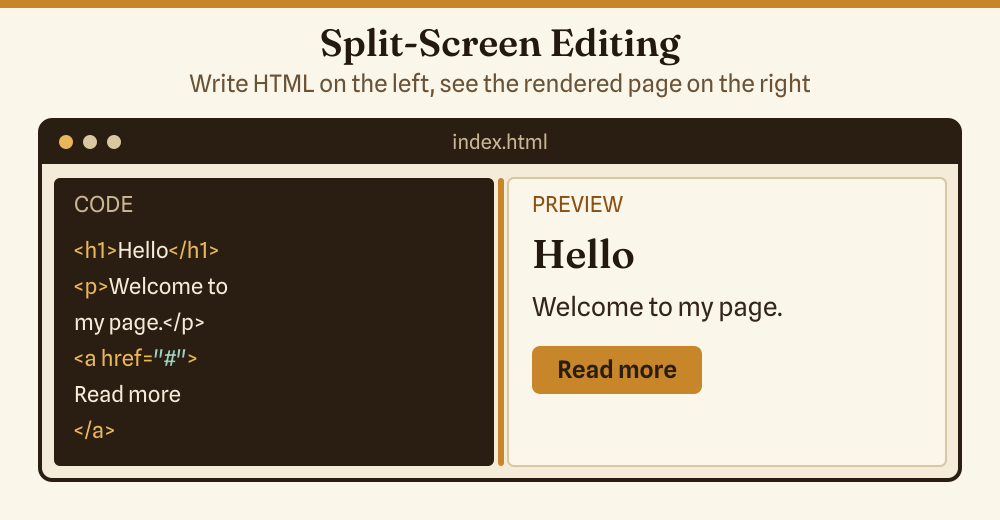
- Live preview — a built-in browser renders your page as you type. Choose split-screen, a second window, or a second monitor.
- Website Projects — organises site files into a project structure so you can manage multi-page sites without losing track of assets.
- FTP upload — upload files directly to a web server from inside the editor, removing the need for a separate FTP client.
Paid Version Additional Features
- Responsive templates — a library of pre-built HTML/CSS templates to start a project from.
- Tag end highlighting — clicking an opening
<div>highlights its closing</div>, which saves significant time in deeply nested layouts. - New Start Screen — a project launcher for choosing templates, opening recent files, or starting from scratch.
- Wizards — guided insertion of images, links, tables, and audio files with form-based dialogs instead of typing raw HTML.
CoffeeCup HTML Editor Pros and Cons
| Pros | Cons |
|---|---|
| Free version covers genuine editing needs | Windows only — no Mac or Linux version |
| Live preview built in (no browser switching) | Restricted to HTML and CSS — no JS debugging |
| FTP upload built in (no separate client needed) | Can struggle with large files (reported in user reviews) |
| Free version plus a paid license (check coffeecup.com for the current price) | Interface shows its age compared to VS Code |
| Validation tool catches errors inline | Fewer features on the free version |
| Good for beginners and intermediate users | Developer community smaller than VS Code |
CoffeeCup Pricing
CoffeeCup HTML Editor has a free version plus a paid license for the full feature set. Check coffeecup.com for the current price, as pricing details can change. There is no subscription for the desktop editor — you pay once and own the version you purchase; major version upgrades may require a new purchase.
The free version is a fully functional editor — not a trial — and can be used indefinitely. The paid version unlocks templates, tag highlighting, and the improved Start Screen.
CoffeeCup vs. Alternatives
CoffeeCup occupies a specific niche. Here is how it compares to the most common alternatives:
| Editor | Platform | Price | Live Preview | Best For |
|---|---|---|---|---|
| CoffeeCup HTML Editor | Windows | Free / paid license (see coffeecup.com) | Built in | Beginners, WYSIWYG-adjacent HTML editing |
| VS Code | Win / Mac / Linux | Free | Via extension (Live Server) | All levels — the industry default |
| Sublime Text | Win / Mac / Linux | Free (nag) / $72 (one-time personal license) | Via plugin | Speed, large files |
| Notepad++ | Windows | Free | No | Simple lightweight editing on Windows |
VS Code has largely displaced dedicated HTML editors for most developers. CoffeeCup’s value is its bundled FTP, live preview, and validation in one application — useful if you want a single tool and do not want to set up extensions.
What Users Actually Say
Positive feedback from G2 and Software Advice centres on the live preview, FTP integration, and the validation tool — features that reduce context-switching during development. Negative feedback mentions Windows-only availability, occasional problems with large files, and the interface feeling dated compared to modern editors.
Who Is CoffeeCup HTML Editor For?
- HTML/CSS learners on Windows who want more structure than Notepad++ but do not need the full extension ecosystem of VS Code.
- Freelancers managing small static sites who want FTP built in to push updates directly.
- Non-developers maintaining existing sites who need to edit HTML occasionally without learning a full development environment.
If you work on Mac or Linux, CoffeeCup is not an option. If you are already comfortable with VS Code and the Live Server extension, there is no reason to switch.
For embedding third-party components into sites you build with HTML editors, see the HTML website widgets guide — it covers embedding without writing the functionality from scratch.
Frequently Asked Questions
Is CoffeeCup HTML Editor free?
Yes, there is a free version with core editing features: syntax highlighting, live preview, code completion, and FTP upload. The paid version adds responsive templates, tag end highlighting, and an updated Start Screen. Check coffeecup.com for the current price of the paid license.
Is CoffeeCup HTML Editor still maintained?
CoffeeCup Software has been publishing HTML editors since the 1990s and the product is actively maintained. Confirm the latest version number and release date at coffeecup.com.
Does CoffeeCup work on Mac?
No. CoffeeCup HTML Editor is Windows-only. Mac users should look at VS Code (free, cross-platform) with the Live Server extension for a comparable live-preview workflow.
How does CoffeeCup compare to VS Code?
VS Code is more powerful, more extensible, and free — but requires setting up extensions for live preview and FTP. CoffeeCup bundles those features out of the box, making it faster to set up for someone who just wants to write HTML and push it to a server. VS Code is the better long-term choice for anyone who will write JavaScript or work with frameworks.
What is the difference between the free and paid CoffeeCup version?
The free version covers HTML/CSS editing with live preview and FTP. The paid version adds responsive templates, tag end highlighting, wizards for inserting common elements, and an improved Start Screen. Both versions allow FTP upload and have no subscription. See coffeecup.com for the current paid license price.